
A. Import
You can import content either from WordPress or an uploaded file.
To start the import wizard open any project and click the "Import" button on the top left corner.
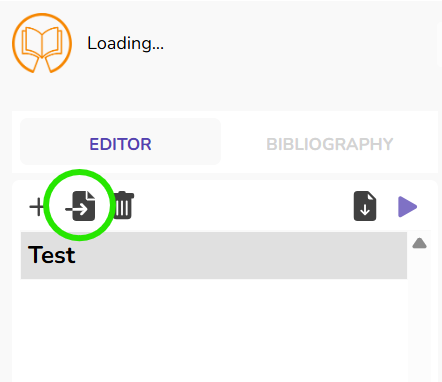
You can now choose between different import options in the dialog window:
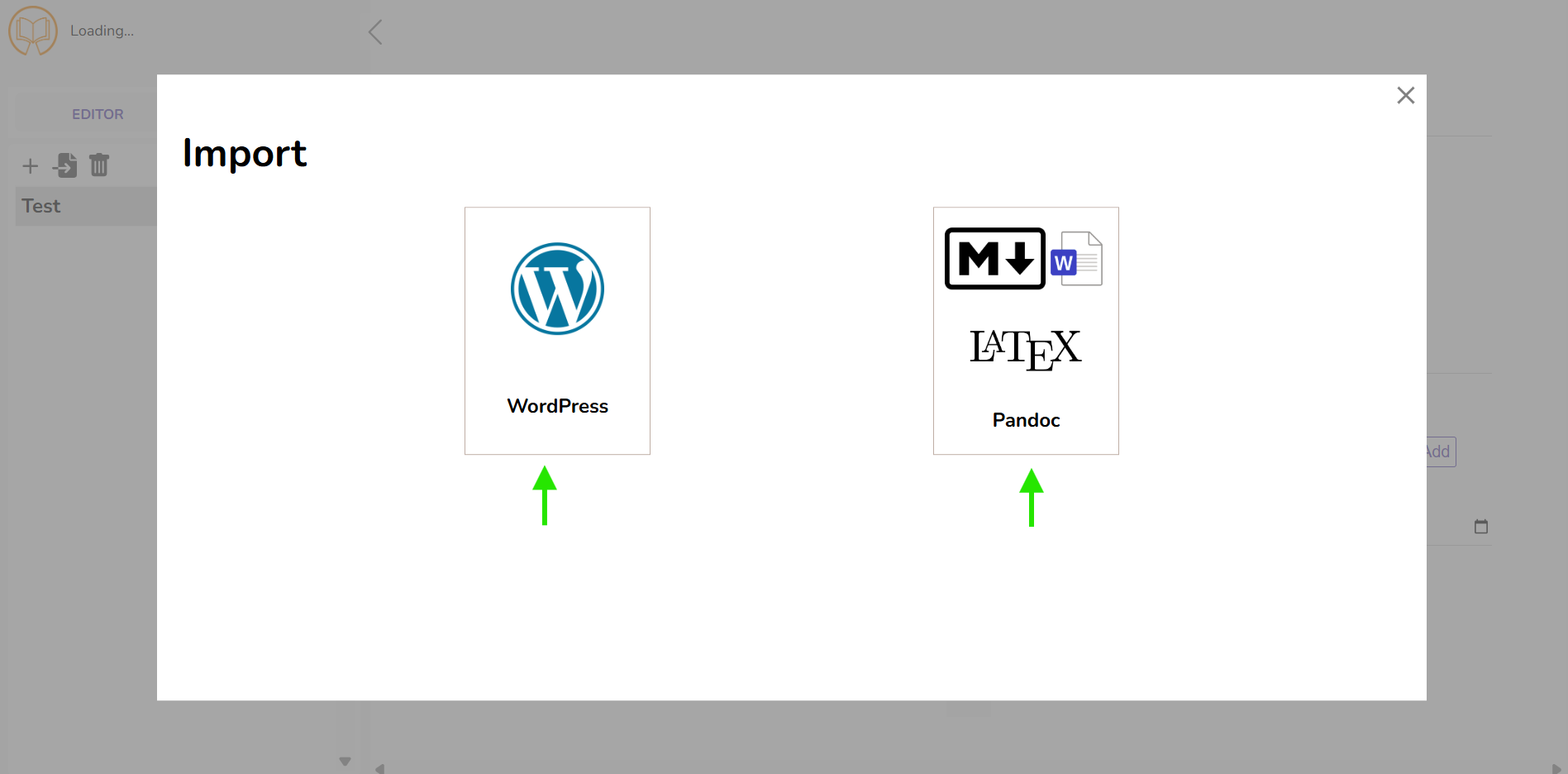
1. Import from Wordpress
You can import posts either via a list of links or by filtering posts from a specified WordPress host.
a) Import by Links
Choose "WordPress" → "Import by Links" in the import wizard and paste the links to all articles you wish to import into the input area. Add one link per line. This might look as follows:
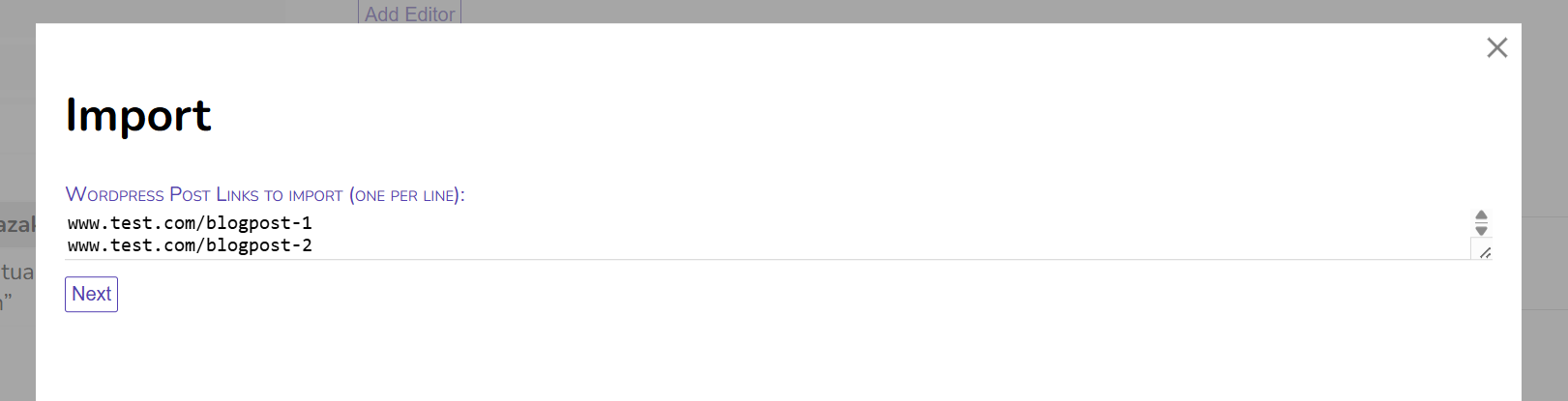
Currently, only direct links to posts can be processed. Links to categories will not work, for imports based on WordPress categories, use the filter option described below.
Import Settings
After inserting your links, you can adjust the import settings. The options are largely self-explanatory, for a brief overview, see the section below.
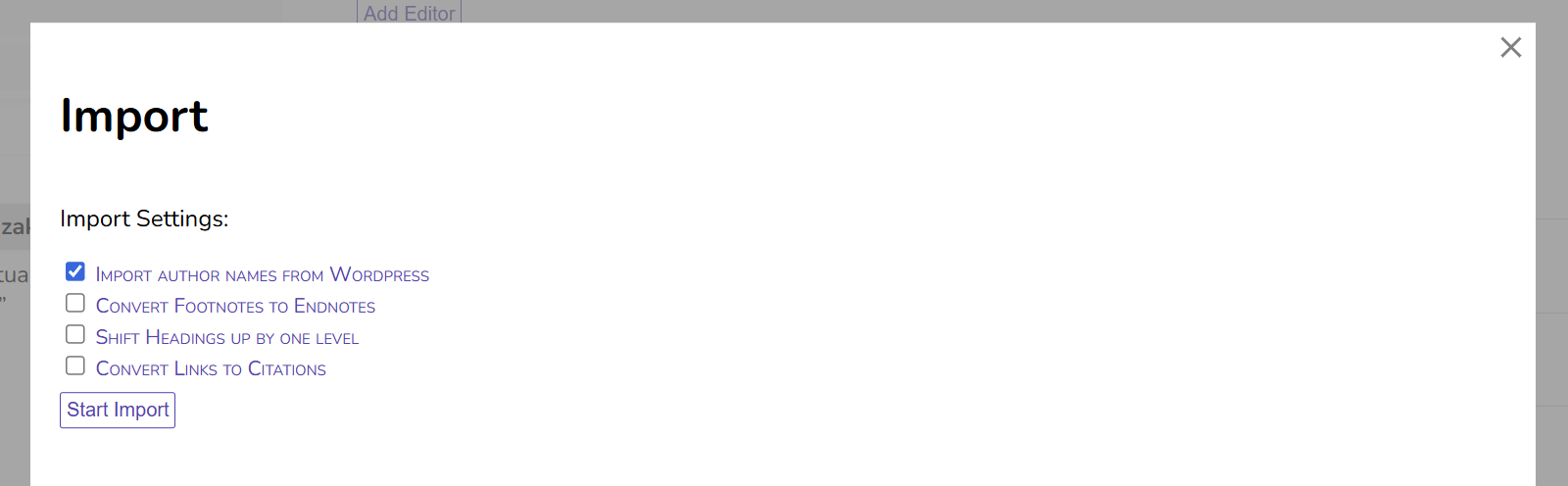
Click "Start Import" to import the content into your Publish Goods project.
b) Import all posts matching a filter
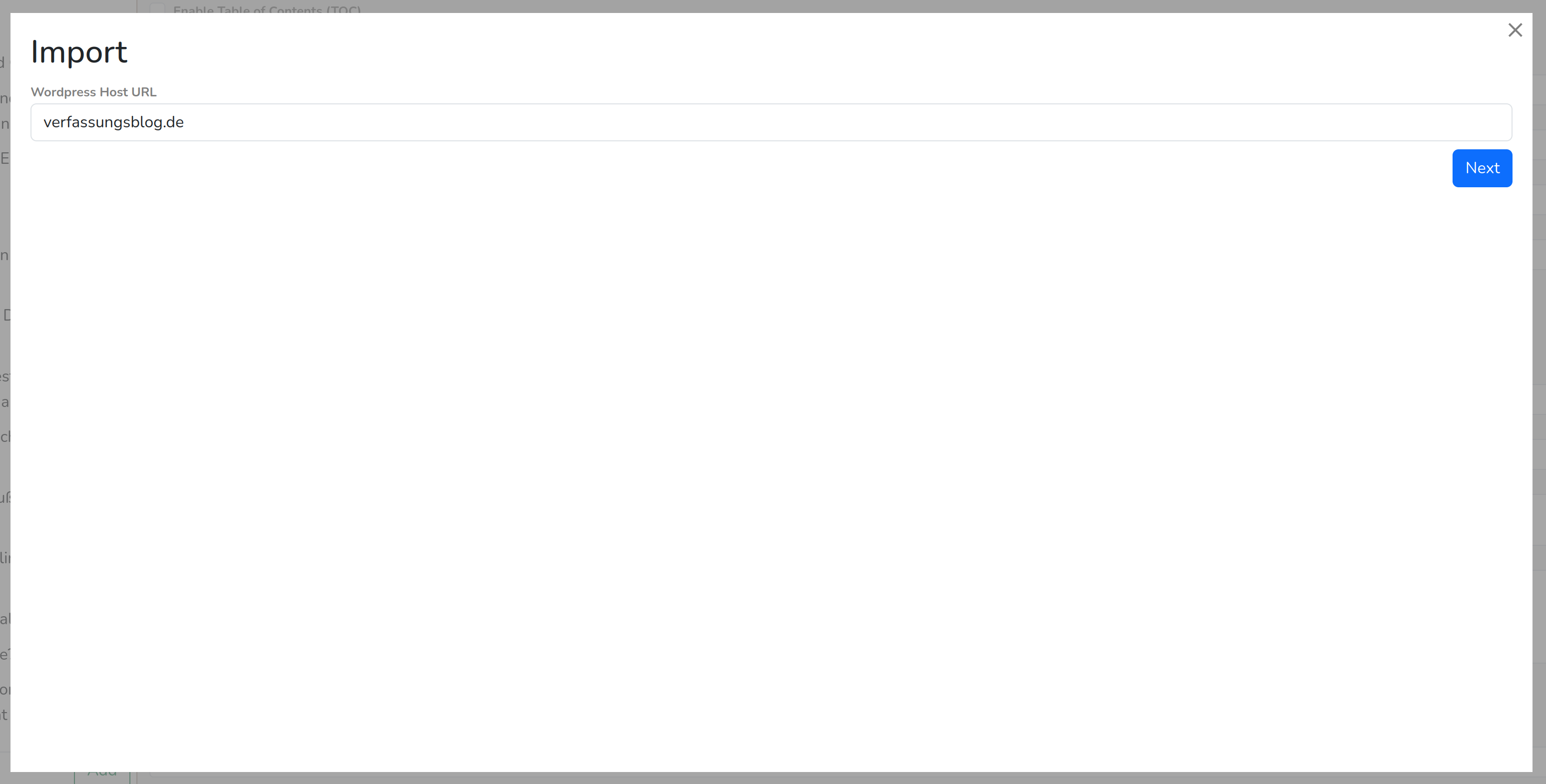 Choose "WordPress" → "Filter Posts" in the import wizard.
Now fill in the WordPress host you wish to import from, e.g. "verfassungsblog.de". Do not include the protocol (https://)!
Loading all categories from the WordPress host may take some time, especially if there are many.
You can now define which posts should be imported. There are three filter options:
i) Include Posts in Categories
If enabled, only posts which are included in at least one of the selected categories will be imported. Note that posts that are in a subcategory are not automatically added to the parent category. But you may use the recursive selection button before the checkbox of every parent category to auto-check all subcategories.
ii) Exclude Posts in Categories
If enabled, excludes all posts which are included in at least one of the selected categories. All other posts will be imported.
iii) Filter by Publish Date
If enabled, only posts within the specified time range will be imported. You can specify a start date, an end date, or both.
On the lower left corner of the import wizard, you will see the number of posts matching your filters. It may display "N/A" if you many categories are selected. This however only affects the preview number, the import will work correctly.
Example 1:
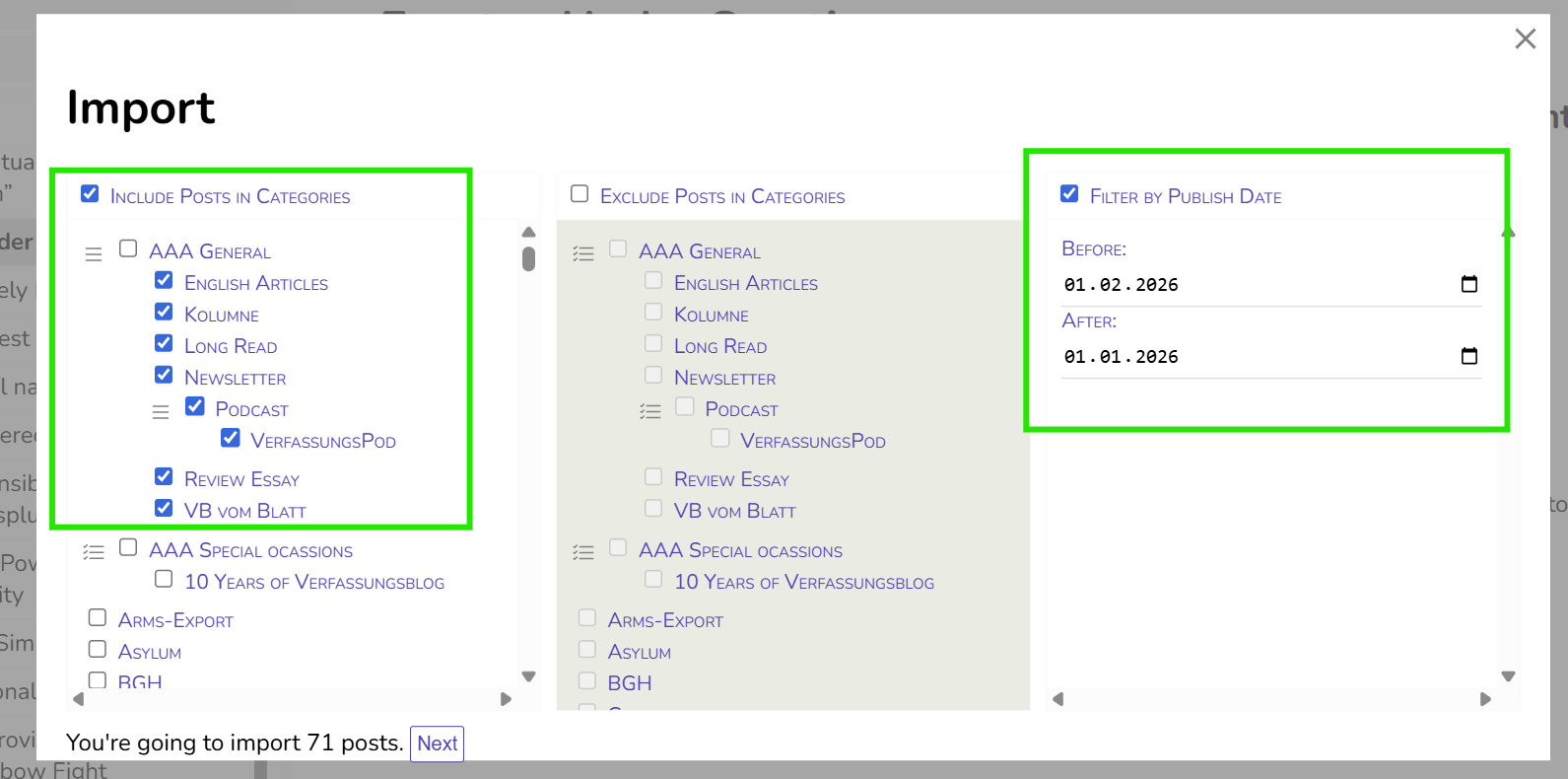
With these settings, all posts published in January 2026 and added to one of the sub-categories of "AAA General" (but not "AAA General" itself!) will be imported.
"After 01.01.2026" includes posts of the 01.01.2026 (and onwards), "before 01.02.2026" excludes posts of the 01.02.2026 (i.e. includes posts of 31.01.2026)
After clicking "Next", you can configure the import settings.
Example 2 (Verfassungsblatt):
To import all posts for tAfhe Verfassungsblatt, you would need these settings:
Exclude Posts in Categories:
Filter by Publish Date:
Before and After according to the issue of the Verfassungsblatt.
Settings for WordPress Imports
After selecting the filters or entering the links to import, you will can set these import settings:
If enabled, author names are extracted from WordPress and added to the sections. Only names are imported. If you require additional information (e.g. authors bio, ORCID, ROR, etc.), you have to create person profiles manually via the “Persons” menu (see Section "Getting Started: Project Creation, Metadata & Persons").
Convert Footnotes to Endnotes:
If enabled, all imported footnotes are converted into endnotes.
Shift Headings up by one level:
If enabled, all heading levels are shifted up by one level. H2 → H1, H3 → H2 etc. This may be useful if imported posts start with H2 instead of H1.
Convert Links to Citations:
Attempts to convert links in the text into citations using a Zotero Translation Server. If a link cannot be converted, it remains unchanged. This works best with static web pages and generally does not work with links to PDF documents.
2. Import from Documents
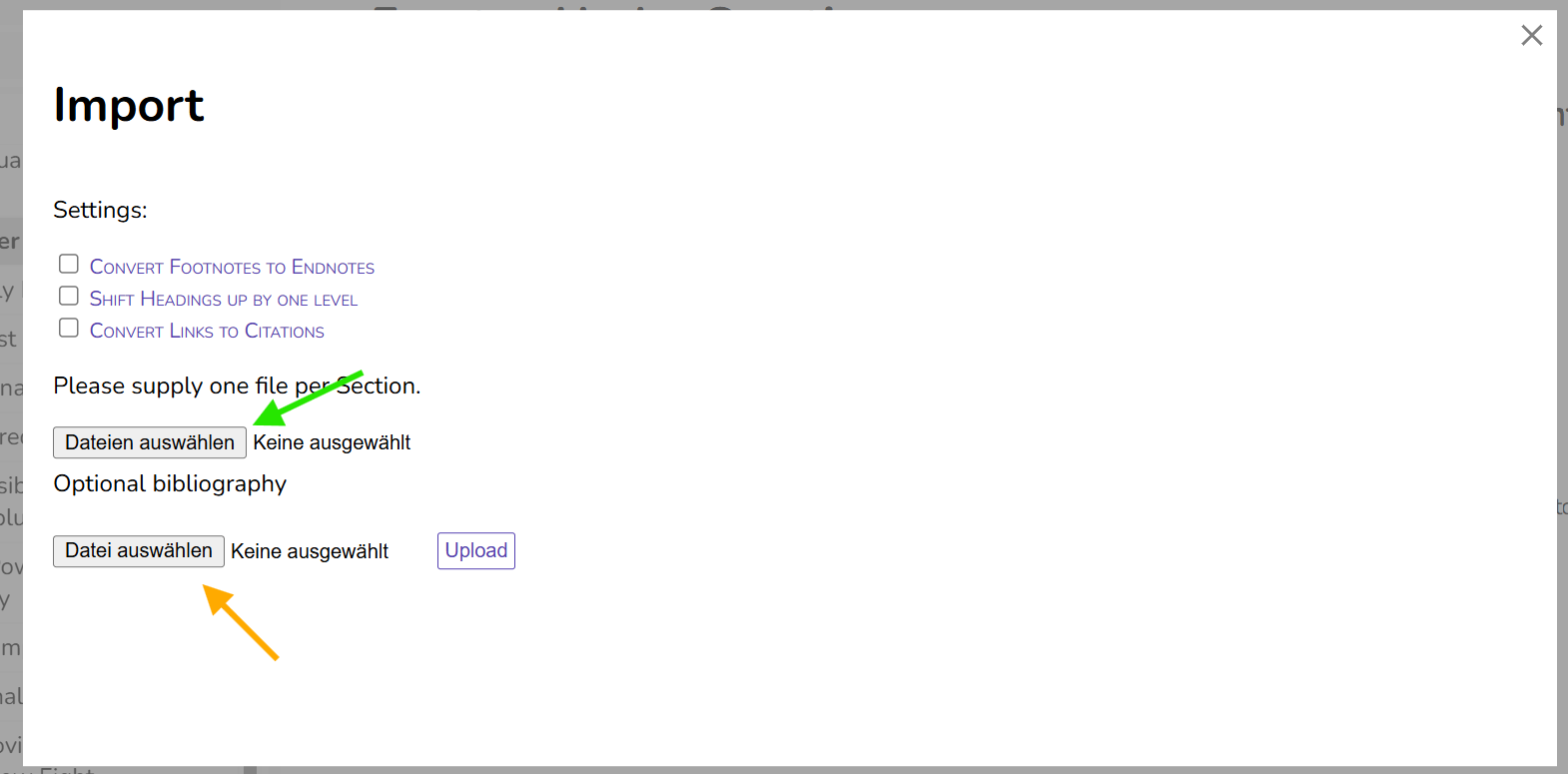
You can also import content from documents, such as Word-Documents, LaTeX, OpenOffice, etc.
Via "Select Files/Dateien auswählen", choose the document you want to import. Each document becomes a section in Publish Goods. If you are preparing e.g. an edited volume or a journal issue, it is recommended to upload each chapter/article as separate files.
Currently, only one file per upload can be processed. To import multiple files, you will need to repeat the process.
As with WordPress imports, you can configure settings for footnotes/endnotes, heading structure, and link-to-citation conversion.
If you want to use Publish Goods as citation management system, you can also upload BibTeX files under "Optional Bibliography". For more on this see the section "Citation Management".
3. Organisation
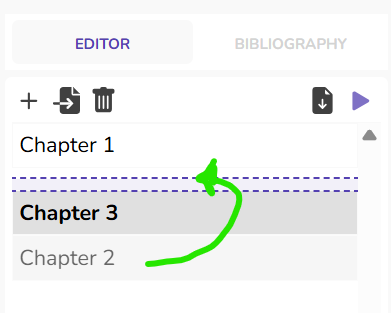
After importing your sections, you can reorder them using drag-and-drop.
You can also structure your content using sections and subsections.
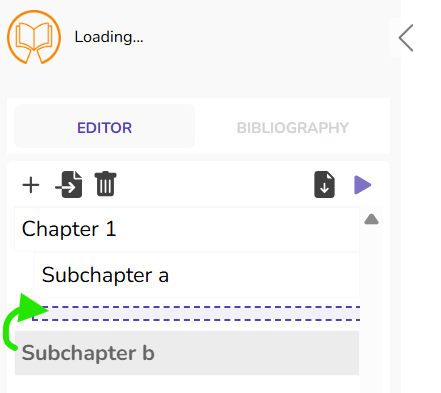
Using subchapters requires using a respective css template.