
B. Editing & Organisation
Publish Goods offers various ways to edit and structure your contents.
1. Metadata
Before you get started, you should ensure that the metadata of each section is complete and correct. If you imported the content via Links, many of the metadata (such as title, author, date, URL, persistent identifier) are automatically filled in.
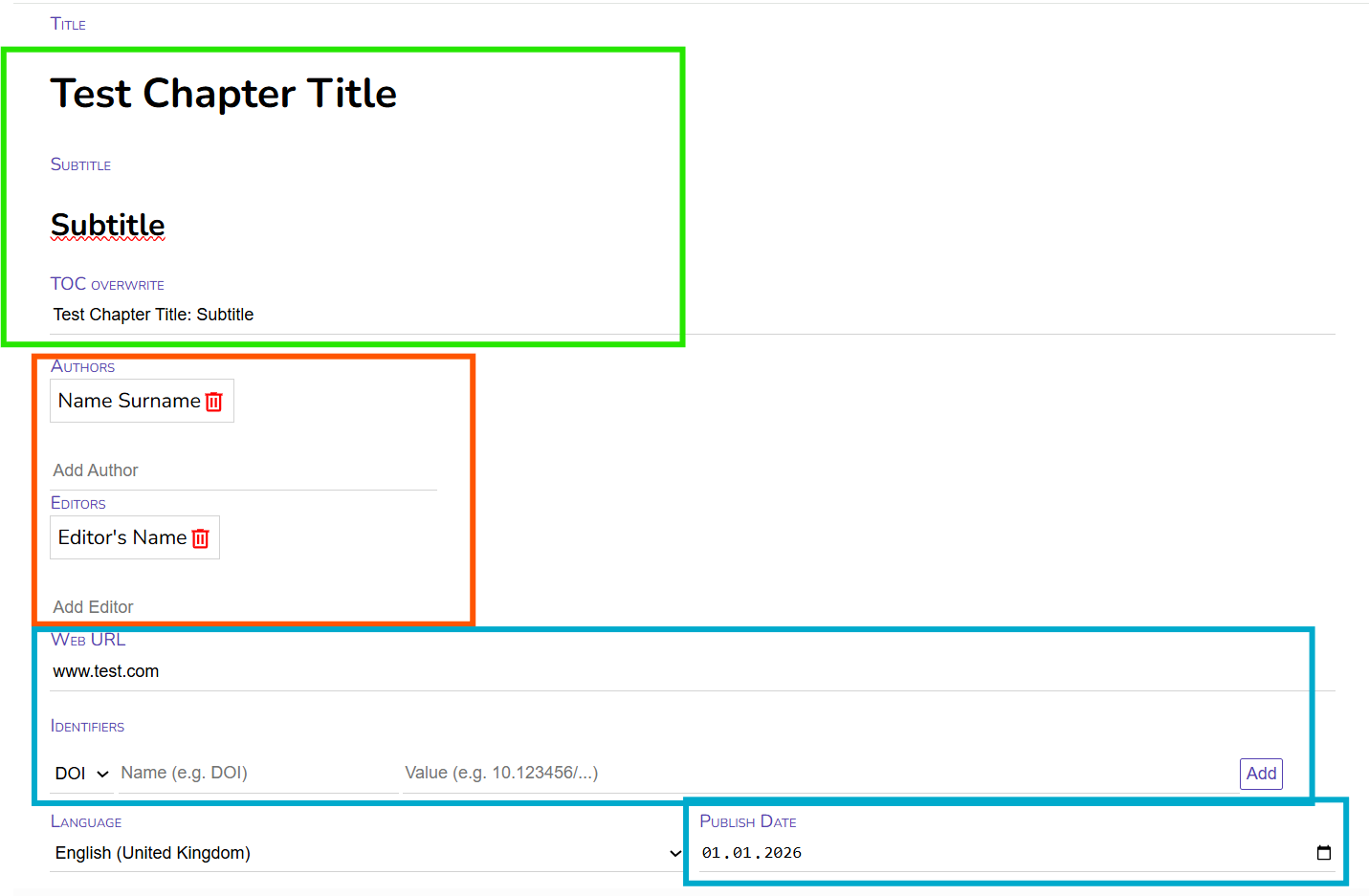
Fill in the title and subtitle of the section.
Under "ToC Overwrite" you have the possibility to display the title differently in the automatically generated Table of Contents. The Table of Contents would display the current Title and Subtitle (as default, this can be adjusted in the css-Template) as "Test Chapter Title: Subtitle". In case of special titles (e.g. ending with a question mark or with an ellipsis, you might want to display it without the automatic colon between title and subtitle in the Table of Contents. In most cases, you can simply ignore this field.
After this, you fill in the Authors Name. You can do so by simply writing the Name and press "Enter". You can of course also add more than one author. You can change the order of authors by drag-and-drop. Typically, a single section has no editor, so this field can be ignored.
If applicable, you can add the URL of the text, as well as persistent identifier, such as DOIs or ISBNs. Also the publish date can be added. Depending on the settings in your template, these information can be displayed in the exported document e.g. showing the URL or DOI on the title page of each chapter.
The language is identified automatically, however you can also specify it manually. The selected language determines the automatic hyphenation.
2. Editing
With Publish Goods, you have several ways to edit and format your texts.
First, you can simply directly edit your texts by writing and adding texts, creating new paragraphs, etc. or deleting existing text. All changes are automatically saved. Just like in Word, you can reverse your last action by the key combination "Ctrl+Z".
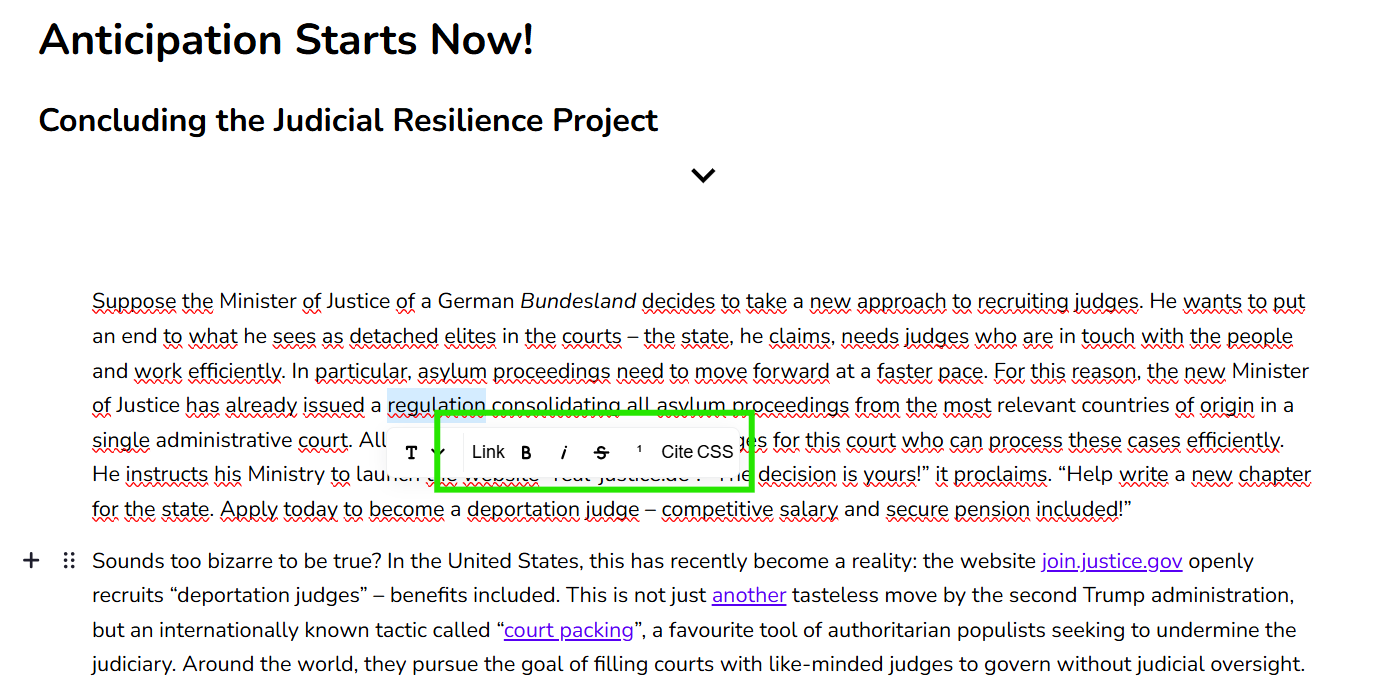
More advanced options open up if you mark a certain words or sentences. Automacially, a small menu opens up:
"B": changes the text to bold
(you can also use the key combination "Ctrl+B")
"i": changes the text to italics
(you can also use the key combination "Ctrl+I")
̶"S̶": changes the text to strikethrough
If you want the text underlined, simply use the keyboard combination "Ctrl+U".
You can also easily add links to your Text. Simply mark the passage that should link to a website and choose "Link".
Let's say in the sentence "If you would like to receive the weekly editorial as an e-mail, you can subscribe here.", we want to add a link to 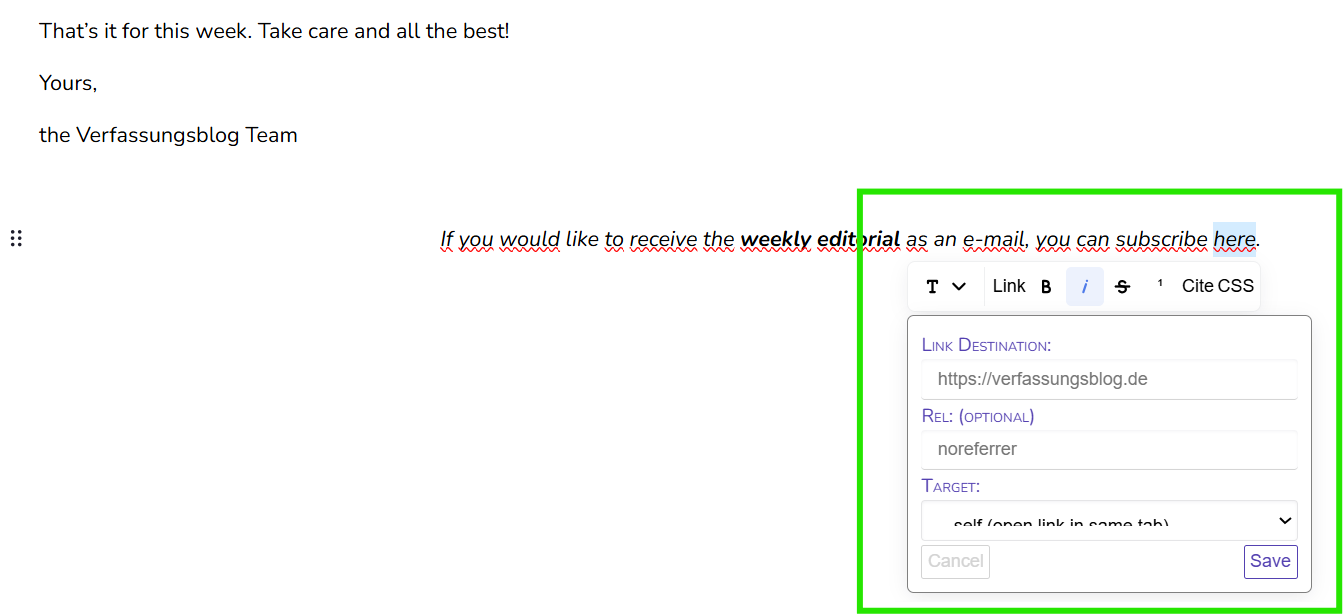 the word "here". Simply mark the word and choose "Link" in the menu. A small window will open, where you can add the link destination (i.e. the URL users will be directed to).
Optionally, you can add specifications such as "external", "noopener" or "noreferrer" in the field "Rel." @KEANU/MIKA: Könnt ihr kurz erläutern was das macht?
Lastly, you can specify whether the link should open in a new tab or the same tab in the drop-down menu ("Target").
Finally, you press "Save" and the word "here" refers to the indicated page. In Publish Goods, links are displayed in blue and underlined, how the link is formatted in the exported format can be adjusted in the Templates.
All other functions you can see in the menu are explained in other Sections:
- "T": Structuring
- Footnotes/Endnotes & Cite: Citation Management
- CSS: Fine-Tuning
3. Structuring
- Editing
- Structuring
- Fine-Tuning