
D. Export
The ultimatelyfinal decisiveand most important step is of course exporting your project. This means transforming the textcontent from the editor into a fully formatted,formatted and layouted publication.
This ofstep courseis will likely betypically not only yourthe last stepstage in preparing your publication, but also a step in between to doubleensure check, whetherthat all your settings in the template work as intended. Also to double check hyphenation,Also, exporting the publication in its intended format is crucial.essential for checking layout, formatting, and hyphenation.
 If you
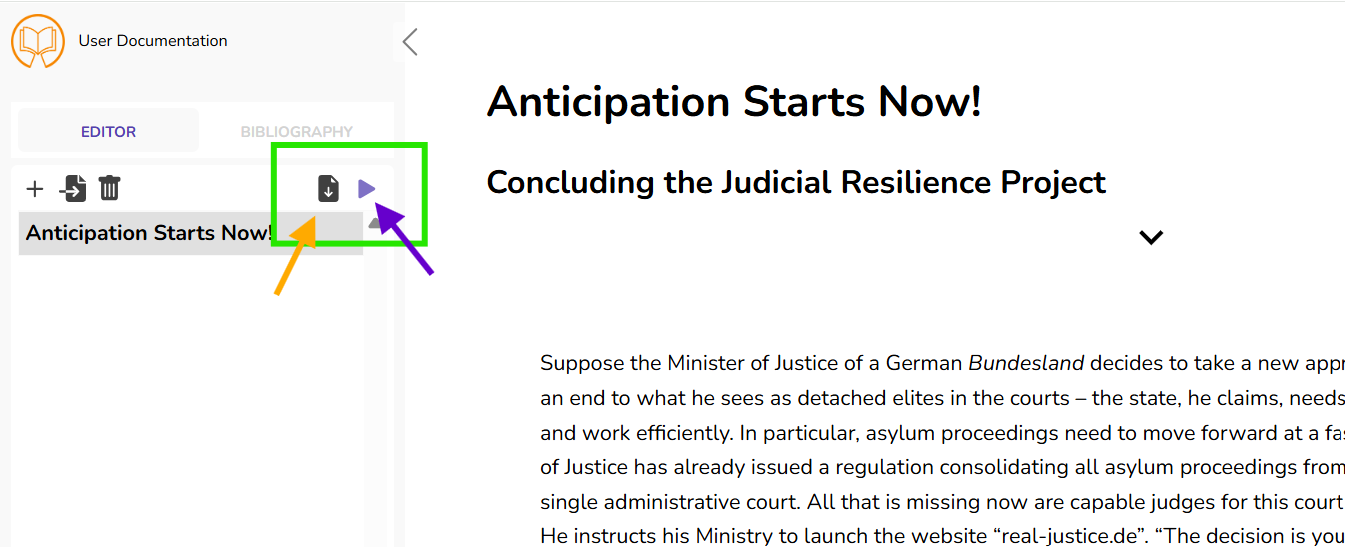
 briefly wantwanto to quickly check, whether a recent change you just made has led to major shifts in the layout, the hyphenation in the following lines, etc. or you want to briefly check, whether e.g. a css-class formatting is working as intended, "Render Preview" (on the right, purple arrow) is the ideal option.
You simplySimply click on "Render Preview". and will see that first aA green banner ("Started preview rendering.") appearswill appear and after a couple of seconds a panel next to the editor text appears,opens up, where you can scroll through the rendered document. You can also increaseadjust the zoom inor modify the panel,panel as well as adjusting the screen division.layout.
The time it takes until the preview appears depends on the length of your project.
If you want to export your project as pdfa PDF or in other formats, simply click on the "Download" Symboldicon (on the left, yellow arrow).
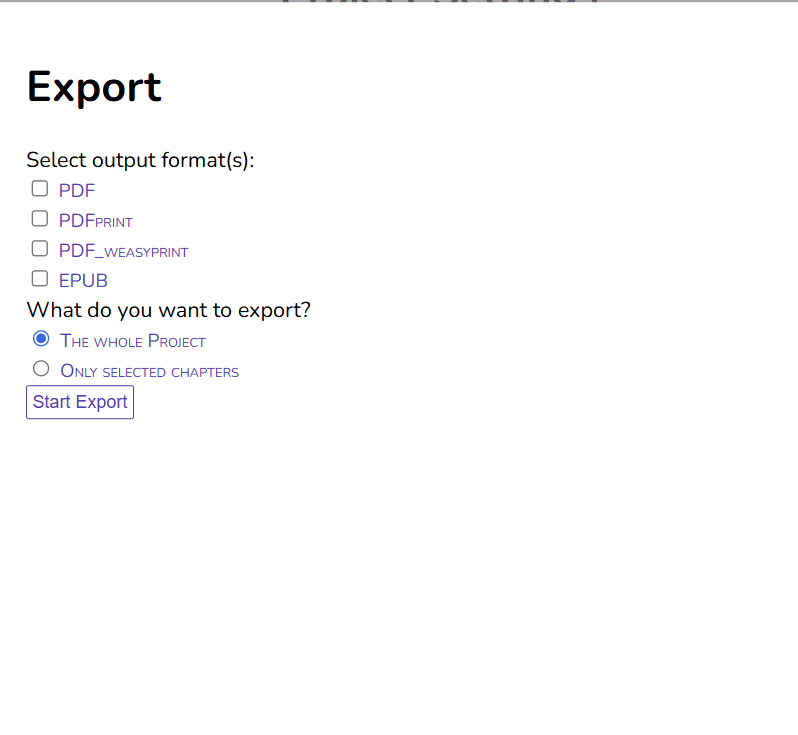
What The available export formats
 are available to you dependsdepend on the output formats you have previously set up for your template. You can create different file formats as outputs (e.g. PDF, epub, xml), but also diverging versions, e.g. a PDF with and without bleed, for print and the digital version.
You can also choose to not export the entire project but only selected chapters. SimplyTo do so, select "Only Selected Chapters" and another menu opens up, where you can tickselect allthose chapters out of the current export formatsections that should be exported.
Note: If you export only selected chapters, they will nevertheless have page numbers starting from p. 1. Hence, if you export your second chapter (that would normally startsstart with p. 20), it will now begin with p. 1.
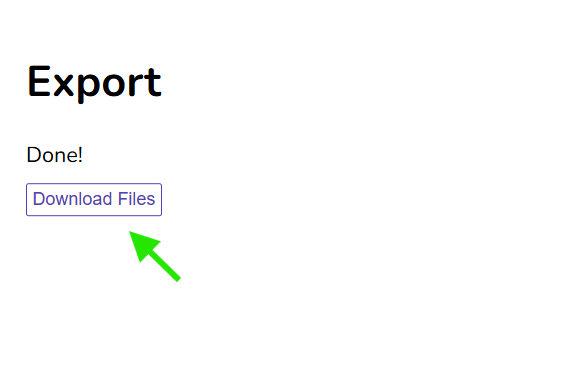
WhenOnce yourthe filesexport areprocess ready,is complete, you can see the following panel:
Simply click on "Download Files" - the download of a zip-file then starts automatically. You will find the zip-file in your downloads,downloads. simply openOpen it andto there you go:access your finished publication created with Publish Goods!Goods!